NRS E-Invoicing
Elyonar is your Access Point Provider (APP) for the Nigeria Revenue Service (NRS) e-invoicing platform. You connect to NRS through Yona Access Point, Elyonar’s API. You send each invoice in the NRS format, and Yona Access Point validates it, has NRS sign it, transmits it to the buyer and tracks it to delivery. You never hold NRS credentials or call NRS yourself.
https://nrs.useyona.comSandbox. The same API runs at https://nrs-sandbox.useyona.com with sandbox credentials. Use it for development and for the conformance run; nothing submitted there is a tax invoice. Its interactive reference, generated from the API itself, is at nrs-sandbox.useyona.com/v1/docs , and the document behind it at /v1/docs/openapi.json.
This guide takes you from your first API call to a delivered, paid and reported invoice. For every endpoint, field and error code, see the API reference in the partner portal , available once you sign in.
How it fits together
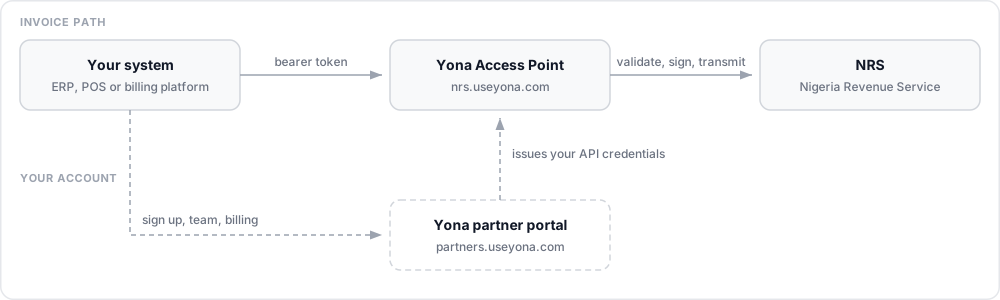
- Your system sends every request in this guide to Yona Access Point.
- Yona Access Point handles everything with NRS: validation, signing, transmission and delivery.
- The partner portal at partners.useyona.com is where you sign up, get approved, manage your team and billing, and create API credentials. Your invoices never pass through it.
- NRS is the tax authority. Elyonar holds the NRS credentials, so the only credentials you need are your Yona Access Point ones.
Before you start
You need three things before your first invoice:
- An approved partner account. Sign up on the partner portal . You can create API credentials once Elyonar approves your account, and the portal shows anything approval still needs.
- A taxpayer that has chosen Elyonar on NRS. For each business you send invoices for, the business enables e-invoicing on the NRS e-invoicing portal , selects Elyonar as its access point and grants the Submit Invoice permission.
- That taxpayer’s NRS key file. The business downloads it from its own NRS account. Yona Access Point uses it to generate the QR code printed on each invoice.
Step 1: Create API credentials
In the partner portal, open Credentials and create a credential. You get a client ID, which starts with appng_p_, and a client secret.
The client secret is shown once and cannot be retrieved later. If you lose it, revoke the credential and create a new one.
Credentials expire after 12 months. To rotate without downtime, create a second credential, switch your system to it, then revoke the old one.
Step 2: Get an access token
Exchange your client ID and secret for an access token. The body is form-encoded, not JSON.
POST /v1/oauth/token
Send the token on every other request in an Authorization: Bearer <access_token> header. A token lasts one hour and can’t be refreshed: reuse it until it expires, then request a new one.
The examples in this guide keep the token in $TOKEN for cURL and in token for JavaScript. The JavaScript examples use the fetch built into Node.js 18 and later, so they need no extra packages. To stay short, they skip error handling: in your code, check response.ok and read the error described in Errors.
Errors from this endpoint use the OAuth format, such as {"error": "invalid_client"} for an unknown, revoked or expired credential, instead of the error format used everywhere else.
Step 3: Connect a taxpayer
Before you submit invoices for a business, connect its TIN. This creates a grant, your permission to submit invoices for that taxpayer, and Yona Access Point checks it with NRS straight away.
POST /v1/taxpayers
A grant stays pending until NRS shows that the business has chosen Elyonar. next_action says what to do next, and stall.actor says who has to act: taxpayer means the business must finish the steps on the NRS portal, and provider means the fix is on Elyonar’s side. To check again, send the same request. It checks NRS again without creating a duplicate, at most once every five minutes, and last_checked_at shows when NRS was last asked.
| Status | Meaning | Can submit |
|---|---|---|
pending | Waiting for the business to choose Elyonar on NRS | No |
connected | Confirmed with NRS | Yes |
stale | NRS no longer shows the permission. Reconnects on its own once the business grants it again | No |
revoked | You revoked it. Connecting the TIN again creates a new grant | No |
List your grants with GET /v1/taxpayers. To disconnect a taxpayer, call DELETE /v1/taxpayers/{id}: new submissions for that TIN are refused straight away, and invoices already accepted are still delivered.
Install the taxpayer’s key
Yona Access Point generates each invoice’s QR code with the business’s own NRS key. The business downloads the key file from My Account → API Integration → Manage Cryptographic Keys in its own NRS account, not the provider account. Upload the file’s contents unchanged.
PUT /v1/taxpayers/{tin}/crypto-key
The file is small, about 700 bytes, and holds a public_key and a certificate. It contains no private key. Ask the business to use Re-download Key on the NRS portal and not Generate while a key is active, because generating can replace a working key. Uploading again replaces the stored key, and GET /v1/taxpayers/{tin}/crypto-key tells you whether a key is on file without returning it.
| Error code | Meaning |
|---|---|
CRYPTO_BUNDLE_MALFORMED | This is not the NRS key file |
CRYPTO_BUNDLE_PLATFORM_KEY_UNKNOWN | The file is from a different NRS platform |
CRYPTO_BUNDLE_CERTIFICATE_INVALID | The public key was pasted into the certificate field |
CRYPTO_BUNDLE_UNUSABLE | The file looks right but cannot be used to generate a QR code |
Step 4: Validate an invoice
Check an invoice against the NRS format and rules before you submit it. Nothing is stored and nothing is sent to NRS. This step is optional, but it catches problems early.
POST /v1/invoices/validate
A failing invoice still returns 200, with valid: false and the problems listed in errors. The taxpayer must be connected, as for a real submission.
Step 5: Submit an invoice
POST /v1/submissions
Send the invoice in the NRS format, with two differences:
- Put
invoice_numberat the top level, and leave outbusiness_id. Yona Access Point fills inbusiness_idfrom the taxpayer’s grant, and refuses a payload that includes it. irnis optional. Yona Access Point builds it for you, as described in The IRN and QR code. If you send one, it must match.
Every submission needs an Idempotency-Key header with a unique value per invoice, such as a UUID.
invoice.json:
{
  "invoice_number": "INV001",
  "issue_date": "2026-09-29",
  "due_date": "2026-10-29",
  "invoice_type_code": "381",
  "invoice_kind": "B2B",
  "document_currency_code": "NGN",
  "tax_currency_code": "NGN",
  "accounting_supplier_party": {
    "party_name": "Greenfield Technologies Ltd",
    "tin": "12345678-0001",
    "email": "accounts@greenfield.example",
    "postal_address": {
      "street_name": "32 Owonikoko Street",
      "city_name": "Ikeja",
      "postal_zone": "100001",
      "country": "NG"
    }
  },
  "accounting_customer_party": {
    "party_name": "Harbour Foods Ltd",
    "tin": "87654321-0001",
    "email": "procurement@harbourfoods.example",
    "postal_address": {
      "street_name": "1 Marina Road",
      "city_name": "Lagos",
      "postal_zone": "101233",
      "country": "NG"
    }
  },
  "invoice_line": [
    {
      "hsn_code": "8471.30",
      "product_category": "Machinery",
      "discount_rate": 0,
      "discount_amount": 0,
      "fee_rate": 0,
      "fee_amount": 0,
      "invoiced_quantity": 2,
      "line_extension_amount": 50000,
      "item": {
        "name": "Network switch",
        "description": "24-port managed network switch"
      },
      "price": {
        "price_amount": 25000,
        "base_quantity": 1,
        "price_unit": "EA"
      }
    }
  ],
  "tax_total": [
    {
      "tax_amount": 3750,
      "tax_subtotal": [
        {
          "taxable_amount": 50000,
          "tax_amount": 3750,
          "tax_category": {
            "id": "STANDARD_VAT",
            "percent": 7.5
          }
        }
      ]
    }
  ],
  "legal_monetary_total": {
    "line_extension_amount": 50000,
    "tax_exclusive_amount": 50000,
    "tax_inclusive_amount": 53750,
    "payable_amount": 53750
  }
}202 means the invoice is safely stored as a submission. Yona Access Point then has NRS sign it, transmits it and tracks delivery in the background. Follow its progress in Step 6 or with webhooks.
Sending the same Idempotency-Key with the same body returns the original 202 and creates nothing new. The same key with a different body is refused with IDEMPOTENCY_KEY_REUSED.
| Status | Code | Meaning |
|---|---|---|
| 400 | FIELD_NOT_ALLOWED | The payload included business_id |
| 402 | ENTITLEMENT_BLOCKED | Your account cannot submit right now. Invoices already accepted still complete |
| 403 | GRANT_NOT_CONNECTED | The supplier TIN has no connected grant |
| 403 | GRANT_STALE | The taxpayer’s permission lapsed on NRS |
| 403 | PARTNER_SUSPENDED | Your account is suspended |
| 409 | IRN_CONFLICT | This invoice number and date were already submitted for the taxpayer |
| 413 | PAYLOAD_TOO_LARGE | The body is larger than 1 MB |
| 422 | IRN_MISMATCH | The irn you sent does not match the one Yona Access Point built. The response shows both |
| 422 | IDEMPOTENCY_KEY_REUSED | The key was already used with a different body |
| 422 | VALIDATION_FAILED | The invoice failed validation, or Idempotency-Key is missing |
Step 6: Track it to delivery
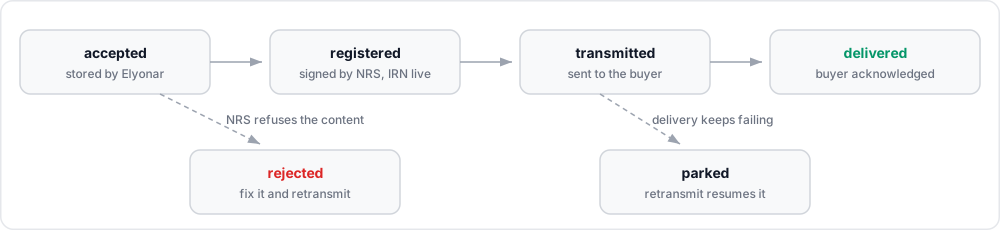
A submission moves forward through these states, and delivered is the successful end. If NRS refuses the content, the submission becomes rejected: fix it and retransmit. If delivery keeps failing, it becomes parked until you retransmit.
| State | Meaning |
|---|---|
accepted | Stored by Yona Access Point and on its way to NRS |
registered | NRS signed the invoice and registered its IRN |
transmitted | NRS accepted it for delivery to the buyer |
delivered | The buyer’s side confirmed receipt |
rejected | NRS refused the content. state_reason says why |
parked | Delivery kept failing. Retransmit to resume |
GET /v1/submissions/{id}
To list submissions, newest first, call GET /v1/submissions. Filter by state, or by supplier TIN with taxpayer. Results come in pages: pass next_cursor back to get the next one.
Retransmit
POST /v1/submissions/{id}/retransmit
- From
parked, send no body. The submission resumes where it stopped. - From
rejected, send{"payload": {...}}with the corrected invoice, following the rules in Step 5. The samesubmission_idis reused, and the IRN changes only if you changedinvoice_numberorissue_date.
In any other state, retransmitting returns 409 INVALID_STATE.
Step 7: Check the authority status
Ask NRS directly what it holds for an invoice. This step and the three after it identify the invoice by its full IRN, such as INV001-94ND90NR-20260929. The invoice number on its own returns 404.
GET /v1/invoices/{irn}/authority-status
status is accepted once NRS reports the invoice delivered, and pending before that. It comes from NRS, so for a while it can differ from the submission state in Step 6: an invoice can be transmitted while NRS still reports pending. details shows the rest of what NRS holds, including the payment status and whether the invoice was transmitted and delivered.
This works for invoices submitted through Yona Access Point for your taxpayers. Any other IRN returns 404.
Step 8: Update the payment status
Once NRS has registered an invoice, its content is final. To correct it, issue a credit note (380) or debit note (384) that references it. What you can update is its payment status, and NRS only learns about payments when you report them.
PATCH /v1/invoices/{irn}/payment-status
payment_status is one of PENDING, PAID, REJECTED or PARTIAL. reference is optional free text for your own payment reference, such as a bank transfer reference. It is not the invoice number: the IRN in the path already identifies the invoice. For a part payment, send PARTIAL with that instalment’s amount, and repeat for each instalment until the invoice is PAID.
nrs_accepted is NRS’s answer. If you send exactly the same update twice in a row, the second one changes nothing: applied is false and NRS is not called again, so retries are safe.
Step 9: File the VAT report
NRS requires every paid invoice to be reported. Once the payment status is PAID, file the report. It is built from the invoice you submitted, so the request needs no body.
POST /v1/invoices/{irn}/report
report shows exactly what was filed, and nrs_accepted is NRS’s answer. If the invoice is not marked PAID, this returns 409 INVALID_STATE.
Step 10: Download the invoice
Get NRS’s copy of an invoice as JSON, to keep as your record of what NRS holds.
GET /v1/invoices/{irn}/download
The copy is available once NRS has registered the invoice. Before that, this returns 404.
It holds the invoice you submitted, as NRS stores it, with a few fields NRS adds:
| Field | What it is |
|---|---|
business_id | The taxpayer’s NRS business ID, filled in by Yona Access Point from the grant |
payment_status | The latest payment status you reported in Step 8 |
payment_summary | The total paid, the balance due, how many payments were reported and when the last one was |
payment_events | Each payment update you reported, with its status, amount, reference and time |
id, postal_address_id | NRS’s own identifiers for the stored party and address records |
TaxCategoryPercent | The tax rate again, as NRS records it. It matches tax_category.percent |
Optional fields you did not send come back empty or null.
The IRN and QR code
Every invoice has an Invoice Reference Number (IRN) in the format NRS defines. Yona Access Point builds it from three parts:
| Part | Source | Example |
|---|---|---|
invoice_number | Your invoice number, using letters and digits only | INV001 |
service_id | The taxpayer’s 8-character NRS service ID, from its grant | 94ND90NR |
issue_date | The invoice date as YYYYMMDD | 20260929 |
Joined with hyphens, they give INV001-94ND90NR-20260929. Each IRN must be unique, so use a new invoice_number for every invoice.
Once NRS registers an invoice, its submission includes qr_code, generated with the taxpayer’s own NRS key. Until then, qr_unavailable says why there is no QR code yet: the IRN is not registered, the taxpayer’s key is not on file, or the QR code could not be generated. Print both the IRN and the QR code on every copy of the invoice.
Is the buyer on the network?
Before you submit, you can ask whether a buyer is on NRS e-invoicing. The answer decides how the invoice reaches them: through their access point if they are, by email or a share link if they are not, and it is reported to NRS either way.
GET /v1/participants/{tin}
The TIN is canonicalised: twelve bare digits become NNNNNNNN-NNNN; any other shape is 422 VALIDATION_FAILED. The lookup is free and limited to 60 calls per minute per partner.
on_network: falsemeans no access point is bound to the TIN.- Answers are cached: a day when the buyer is on the network, six hours when not.
stale: truemeans NRS could not be reached and you are seeing the last known answer. 503PARTICIPANT_LOOKUP_UNAVAILABLEis answered only for a TIN we have never seen while NRS is unreachable.
Webhooks
Instead of polling, register an HTTPS endpoint and get notified as your submissions change.
POST /v1/webhook-endpoints
The secret is shown once. After that, only kcv, a six-character fingerprint of it, is available.
Every notification is a JSON POST in this format:
{
  "event_id": "a3c5e7f9-1b2d-4f6a-8c0e-2d4f6a8c0e1b",
  "event_type": "submission.delivered",
  "occurred_at": "2026-09-29T09:33:52.480Z",
  "data": {
    "submission_id": "0f3c9a6e-5b2d-4e71-8c90-1a2b3c4d5e6f",
    "irn": "INV001-94ND90NR-20260929",
    "state": "delivered",
    "state_reason": null,
    "taxpayer_tin": "12345678-0001",
    "environment": "production",
    "correlation_id": "3e5b7c9d-1f2a-4b6c-8d0e-2f4a6c8e0b1d"
  }
}| Event | Sent when |
|---|---|
submission.accepted | An invoice was stored |
submission.registered | NRS signed it and registered the IRN |
submission.transmitted | NRS accepted it for delivery |
submission.delivered | The buyer’s side confirmed receipt |
submission.rejected | NRS refused the content |
submission.parked | Delivery kept failing |
grant.updated | A taxpayer grant changed status |
invoice.received | An invoice arrived for one of your connected taxpayers. Its data carries irn, taxpayer_tin, supplier_tin, supplier_reference, customer_reference, transmission_status, pushed_at, source (pull or history) and environment |
invoice.updated | A received invoice changed, for example its payment or delivery status. Fetch it again |
operational.notice | Maintenance windows and account notices |
Verify the signature
Each notification carries two headers: X-AppNg-Timestamp, in Unix seconds, and X-AppNg-Signature, which is sha256= followed by the hex HMAC-SHA256 of {timestamp}.{raw body}, keyed with your secret. Recompute the signature over the raw bytes you received, compare the two in constant time, and reject any notification whose timestamp is more than five minutes from your clock.
Respond with any 2xx status. Redirects are not followed and count as failures. Failed notifications are retried with exponential backoff, up to eight hours apart.
- Deduplicate on
event_id. The same event can arrive more than once. - Do not rely on order. Events can arrive out of sequence, so treat the submission itself, from Step 6, as the source of truth.
- Rotating the secret takes effect at once.
POST /v1/webhook-endpoints/{id}/rotate-secretreturns a new secret and the old one stops working immediately, so get your verifier ready for the new secret first.
You can also manage endpoints on the Webhooks page of the partner portal.
Receiving invoices
Invoices that other access points send to your connected taxpayers appear here, newest first, and each one also triggers an invoice.received notification. A partner with a connected grant for a TIN sees every invoice for it, including history from before the connection; after a revoke it keeps what it had up to then.
GET /v1/inbound-invoices
Query parameters: taxpayer (one TIN or a comma-separated list), direction (received, issued or all; default received), cursor, limit, and the filters transmission_status, access_point, supplier_tin, payment_status, currency, q, issued_from, issued_to, received_from, received_to, amount_min, amount_max and sort.
The list is an infinite loader over the taxpayer’s history. When the cached rows run out, the next request with the returned next_cursor fetches the next older page from NRS, which can take a few seconds. Keep paging until next_cursor is null; history_exhausted: true means NRS holds nothing older.
GET /v1/inbound-invoices/facets
The distinct access points, transmission statuses, payment statuses and currencies, with the smallest and largest payable amount, issue date and receipt instant, over everything the list would show for taxpayer and direction. Use it to build filters.
GET /v1/inbound-invoices/{id}
The same fields plus document, the full invoice as NRS delivered it, with the supplier and customer parties, the lines, the tax totals and the monetary totals, and raw_payload. document is null until NRS releases the content. A 404 means not found or not yours: an invoice for a TIN you hold no grant for looks like one that does not exist.
Other operations
| Method | Path | What it does |
|---|---|---|
GET | /v1/submissions | Your submissions, newest first, cursor-paged; filter with state and taxpayer |
GET | /v1/submissions/{id}/attempts | Every call made to NRS for one submission, in order: validate, sign, transmit, confirm, download, acknowledge, payment update, VAT report |
GET | /v1/taxpayers | Your taxpayer grants, every status, revoked history included |
DELETE | /v1/taxpayers/{id} | Revoke a grant. New submissions for the TIN are blocked at once; in-flight ones complete |
GET | /v1/taxpayers/{tin}/crypto-key | Whether the taxpayer’s key file is on file and who supplied it; never the material |
GET | /v1/webhook-endpoints | Your endpoints. Each carries kcv, the first six hex characters of the secret’s SHA-256, so you can check the secret you stored without seeing it again |
PATCH | /v1/webhook-endpoints/{id} | Change the URL or set status to active or disabled; the secret is untouched |
DELETE | /v1/webhook-endpoints/{id} | Disable an endpoint; its delivery evidence is kept |
POST | /v1/webhook-endpoints/{id}/rotate-secret | A new secret, shown once, replaces the old one at once: deploy it to your verifier first |
GET | /v1/usage | Your metered milestones, oldest first, at most one per submission and event type; the feed your statements are computed from |
GET | /v1/resources/{type} | Cached NRS reference data by type, such as countries and currencies; served fresh for six hours and stale for up to two days if NRS is unreachable |
POST | /v1/conformance/runs | Open a conformance run: an evaluation window during which you perform the onboarding scenarios with your own client |
GET | /v1/conformance/runs/{id} | The run with the latest verdict per scenario and its evidence |
POST | /v1/conformance/runs/{id}/evaluate | Evaluate the run; it freezes on a full pass |
POST | /v1/conformance/runs/{id}/abandon | Abandon a run so a fresh one can start |
Invoice fields
These are the fields Yona Access Point checks. Any other field in the NRS format is accepted and passed to NRS unchanged.
Top-level fields
| Field | Required | Notes |
|---|---|---|
invoice_number | Yes | Letters and digits only. Becomes part of the IRN |
issue_date | Yes | YYYY-MM-DD |
invoice_type_code | Yes | See Reference data |
invoice_kind | Yes | B2B, B2C, B2G or G2B |
document_currency_code | Yes | ISO 4217, for example NGN |
tax_currency_code | Yes | ISO 4217 |
accounting_supplier_party | Yes | The seller. See Parties |
invoice_line | Yes | At least one line |
legal_monetary_total | Yes | The invoice totals |
accounting_customer_party | No | The buyer. Can be left out for B2C |
due_date | No | YYYY-MM-DD |
issue_time | No | HH:mm:ss |
tax_point_date | No | YYYY-MM-DD |
tax_total | No | The tax breakdown |
billing_reference | Credit and debit notes | The original invoice’s irn and issue_date |
note | No | Free text |
irn | No | Built by Yona Access Point. If you send it, it must match |
business_id | Never | Filled in by Yona Access Point from the grant |
Parties
accounting_supplier_party and, when present, accounting_customer_party:
| Field | Required | Notes |
|---|---|---|
party_name | Yes | Legal business name |
tin | Yes | Tax Identification Number |
email | Yes | Contact email |
postal_address.street_name | Yes | |
postal_address.city_name | Yes | |
postal_address.postal_zone | Yes | |
postal_address.country | Yes | ISO 3166-1, for example NG |
postal_address.state | No | ISO 3166-2, for example NG-LA |
postal_address.lga | No | Local government area |
telephone | No | |
business_description | No |
Lines
| Field | Required | Notes |
|---|---|---|
invoiced_quantity | Yes | |
line_extension_amount | Yes | The line total before tax |
item.name | Yes | |
item.description | Yes | |
price.price_amount | Yes | Price per base quantity |
price.base_quantity | Yes | |
price.price_unit | Yes | A quantity code such as EA, from invoice-quantity-codes |
discount_rate, discount_amount | Yes | Use 0 when none apply |
fee_rate, fee_amount | Yes | Use 0 when none apply |
hsn_code, product_category | No | Classification for goods |
isic_code, service_category | No | Classification for services |
Totals
legal_monetary_total needs line_extension_amount, tax_exclusive_amount, tax_inclusive_amount and payable_amount. When you send tax_total, each entry needs tax_amount, and each tax_subtotal needs taxable_amount, tax_amount and a tax_category with its id and percent. Yona Access Point checks that the amounts add up before anything is sent to NRS.
Reference data
GET /v1/resources/{type} returns NRS’s code lists: countries, currencies, tax-categories, payment-means, invoice-types, services-codes, vat-exemptions, hs-codes and invoice-quantity-codes. Any valid token can read them. If NRS cannot be reached, you get the last known list with stale: true.
The invoice types you will use most:
| Code | Type | Notes |
|---|---|---|
381 | Commercial Invoice | A standard sales invoice |
380 | Credit Note | Needs billing_reference |
384 | Debit Note | Needs billing_reference |
386 | Factored Invoice |
The VAT categories:
| Code | Rate |
|---|---|
STANDARD_VAT | 7.5% |
REDUCED_VAT | 7.5% |
ZERO_VAT | 0% |
EXEMPTED | 0% |
NRS publishes other tax categories as well, such as WITHHOLDING_TAX and STAMP_DUTY. Read the full list from tax-categories.
Errors
Every endpoint except the token endpoint returns errors in this format:
{
  "code": "GRANT_NOT_CONNECTED",
  "message": "No connected grant for this taxpayer",
  "details": { "tin": "12345678-0001" }
}
Branch on code, which is stable, rather than on message. details adds specifics when there are any, such as the fields that failed or the IRN Yona Access Point expected.
| Status | Code | Meaning |
|---|---|---|
| 401 | UNAUTHENTICATED | Missing, invalid or expired token. Request a new one |
| 402 | ENTITLEMENT_BLOCKED | Your account cannot submit new invoices |
| 403 | INSUFFICIENT_SCOPE | The token does not allow this action |
| 403 | CROSS_PARTNER_FORBIDDEN | The resource belongs to another partner |
| 404 | NOT_FOUND | Unknown resource |
| 409 | INVALID_STATE | The action does not apply in the resource’s current state |
| 422 | VALIDATION_FAILED | The request failed validation. details names the problem |
| 429 | RATE_LIMITED | Too many requests. Slow down and retry |
The API reference in the partner portal lists every error code.